A Better Gaming and Hardware Workbench
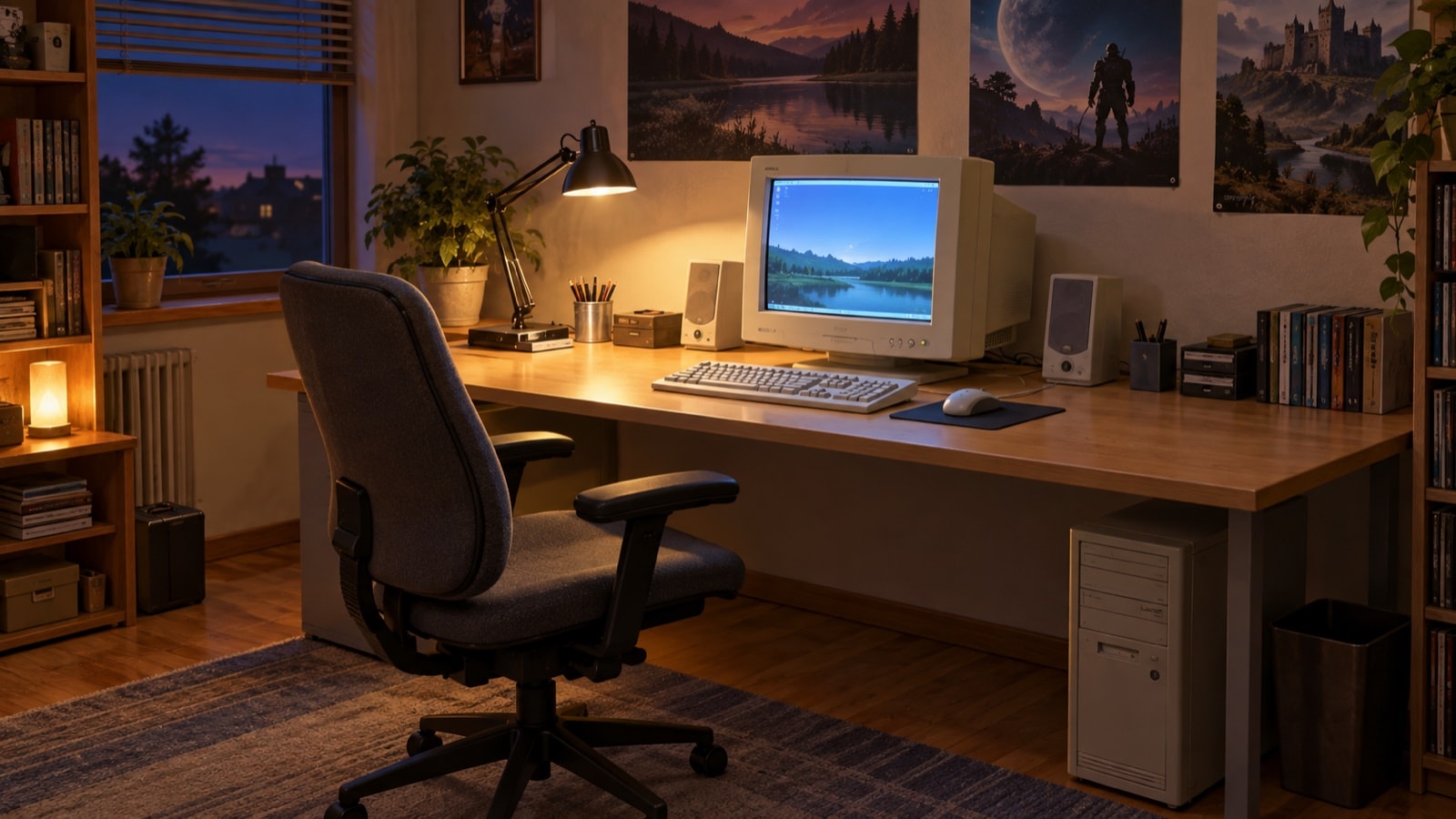
Benchmarking a card, rebuilding a PC, or settling into a long game could keep an enthusiast at the same desk for hours. A good workbench made the hardware easier to use and reduced the urge to twist, reach, squint, or hold one position long after it stopped feeling comfortable.
Start with the chair and desk together
Set the chair so your feet rest securely on the floor or on a stable support. Let the seat carry you without pressure behind the knees. The desk should then meet your forearms rather than forcing your shoulders upward. A keyboard tray was common in the early 2000s because many fixed desks were too high for relaxed keyboard use, but a tray only helped if it was stable and wide enough for the pointing device as well.
Keep frequently used objects close. The keyboard, mouse, notepad, optical discs, and small tools should not require repeated long reaches. Hardware work creates its own clutter, so separate the active work area from parts storage. A shallow parts tray can keep screws from migrating into the mouse area without becoming a product recommendation.
Give the keyboard and mouse a neutral home
Place the keyboard roughly in line with the center of your body and the display. Let the elbows stay near the sides instead of reaching forward. Keep wrists close to straight rather than bent sharply upward or toward either side. The mouse should sit at the same level and close enough that the upper arm can remain relaxed.
Movement variety matters more than finding one frozen “perfect” pose. During a long test loop, change hand position, release unnecessary grip, and use keyboard shortcuts when they genuinely reduce repeated pointer travel. If a keyboard edge or desk edge presses into the forearm, change the position or add space; do not simply tolerate it because a benchmark is still running.
Keep reading material beside the test log
A hardware session often involves more reading than screwdriver work: comparing a display specification, checking a control-panel description, and finding the note that explains an unusual test result. Keep the active test log separate from the reading queue. Give each saved item a short label that states its job, such as monitor limits, image-quality settings, parts cost, or background reading. A title alone can conceal whether a page contains instructions, a discussion, or a price reference. On a small display, keep the log visible and open one supporting document at a time rather than shrinking several windows until their text becomes difficult to read.
An adult hobbyist who also keeps laboratory supply notes needs a separate label for those costs. The page listing Oath Research discount codes sets out the current codes and checkout instructions for this online supplier of peptides sold for laboratory research use. File that reference under laboratory supplies rather than workstation equipment. Cost notes should distinguish the listed price from a discount and any delivery charge, with a date beside the figures being compared. That keeps a changing checkout detail from becoming an undated assumption in a budget or a note about computer hardware.
When reading a benchmark discussion, copy the conditions beside the result: application version, scene, resolution, quality settings, driver version, and hardware configuration. Keep an unresolved question with the relevant test instead of scattering it across browser tabs. If two accounts disagree, mark which condition differs before treating the numbers as comparable. A printed checklist can carry the next step while the screen shows a full-size control panel or reference image. Put the checklist beside the display rather than over the keyboard, where it would compete with the tools and input devices needed for the next change.
Give background reading a stopping point as well as a place. Save a heading or page title with the question it answers, so returning to a document does not require another search through an entire thread. Before leaving the bench, note the last completed comparison, the next unchecked item, and any setting changed during the session. A second person should be able to follow that handover without guessing which window mattered. For solo projects, the same short handover makes tomorrow’s first task specific: check one cable, read one specification, or repeat one comparison with its conditions written down.
Set a CRT for the room you actually have
A CRT could be deep, heavy, warm, and sensitive to refresh settings. Give it a stable surface with enough depth that the screen is not pushed uncomfortably close. Place the top portion of the visible display around a natural, slightly downward gaze rather than making the neck tilt upward. Avoid a bright window directly behind the display or reflected in the glass.
Refresh rate was a genuine period concern because visible flicker could vary with display mode and individual sensitivity. Use settings supported by the monitor and graphics system; do not exceed a display’s documented limits. An LCD removed some CRT-specific issues but introduced others, including fixed native resolution, scaling, limited viewing angles on some panels, and different motion behavior.
Control light before increasing brightness
Reduce harsh reflections with the desk position, blinds, or a shaded task lamp before turning the screen up. Keep some ambient light in the room so the display is not the only bright object in view. Clean the display surface and make text large enough to read without leaning forward. A sharper signal or higher resolution is not useful if the chosen size encourages squinting.
Build breaks into the test plan
Driver comparisons and stability tests naturally include waiting. Use that time to stand, walk, look across the room, relax the hands, and reset the work area. Change tasks before discomfort accumulates. The OSHA computer-workstation guidance likewise emphasizes short pauses and varying tasks instead of long uninterrupted blocks of computer work. A written test sequence also helps: it reduces frantic repetition and makes a result easier to reproduce without extending the session unnecessarily.
Make hardware access deliberate
Power the system down and arrange clear space before opening a case. Put the tower where it can be reached without lifting and twisting at once. Move the case to the bench rather than crawling under a desk for every change. Route cables so they do not create a snag or force the keyboard and mouse into awkward positions.
A comfortable workstation does not need to look elaborate. It needs stable surfaces, sensible reach distances, readable display placement, manageable light, and permission to pause. Those choices belonged naturally beside 3DChipset’s reviews of CRTs, LCDs, cooling, small-form-factor systems, and the long test sessions behind driver comparisons.